ማብራሪያ
BalticXML creates WooCommerce product feeds for price comparison sites in Latvia and Lithuania. Choose the sites you use, save your settings, and submit each site’s XML feed URL.
Supported sites
- Latvia: salidzini.lv, kurpirkt.lv, ceno.lv
- Lithuania: Kaina24.lt, Kainos.lt, Pricer.lt
Each site gets its own feed in the format it needs. BalticXML uses your existing product information, including prices, images, categories, brands and barcodes.
Features
- XML product feeds for six Latvian and Lithuanian price comparison sites
- Support for simple, variable and external WooCommerce products, including individual variation offers
- Product prices, images, category hierarchies, brands, models and EAN/GTIN barcodes in supported feed formats
- Scheduled feed updates and caching for fast feed delivery
- Out-of-stock product filtering
- Product data validation with instructions for fixing missing required and recommended fields
- Reports showing excluded products, missing information and links to edit affected products
- Independent feeds with customizable URLs for each comparison site
- WooCommerce HPOS compatibility
- Translation ready
Get started
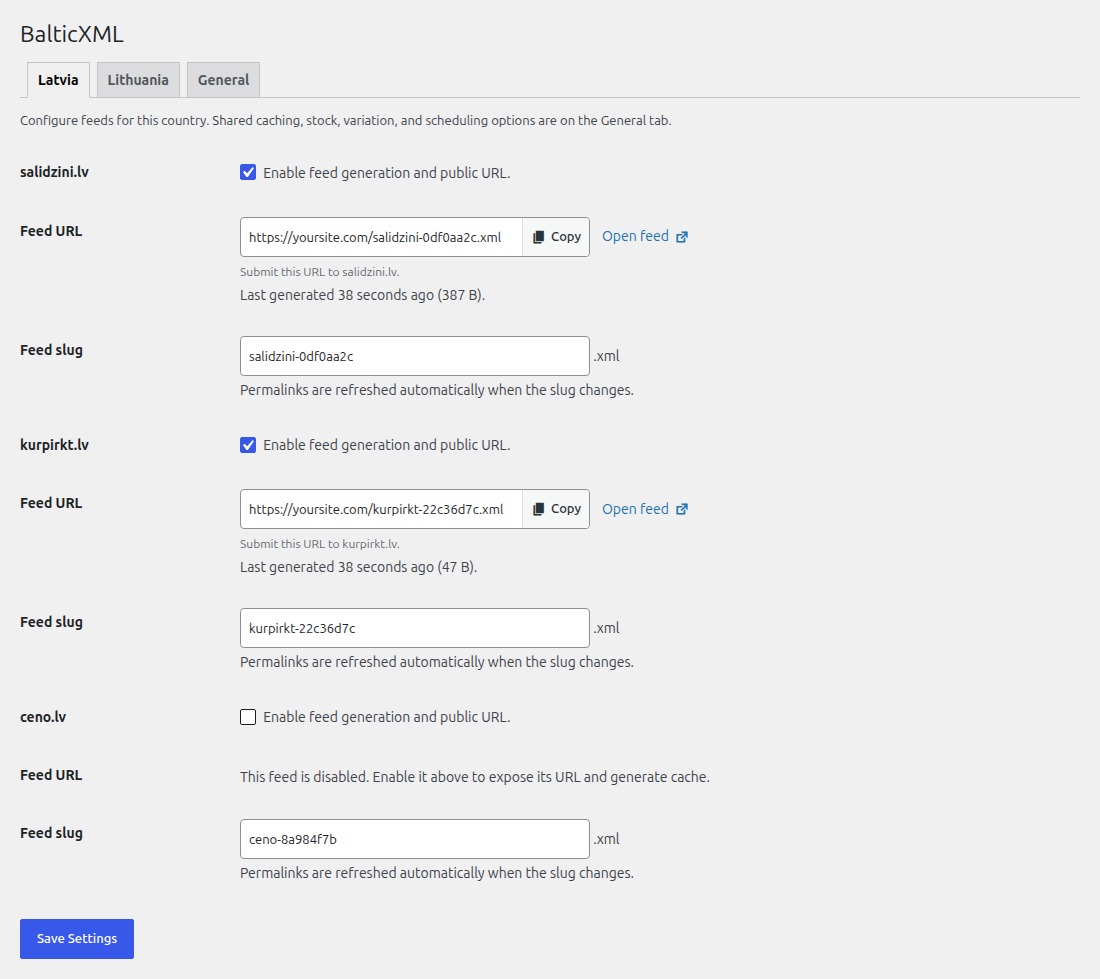
Open BalticXML in your WordPress admin, choose Latvia or Lithuania, enable the feeds you need, and save. Copy each feed URL and submit it to the corresponding price comparison site. Set your update schedule and other shared options on the General tab.
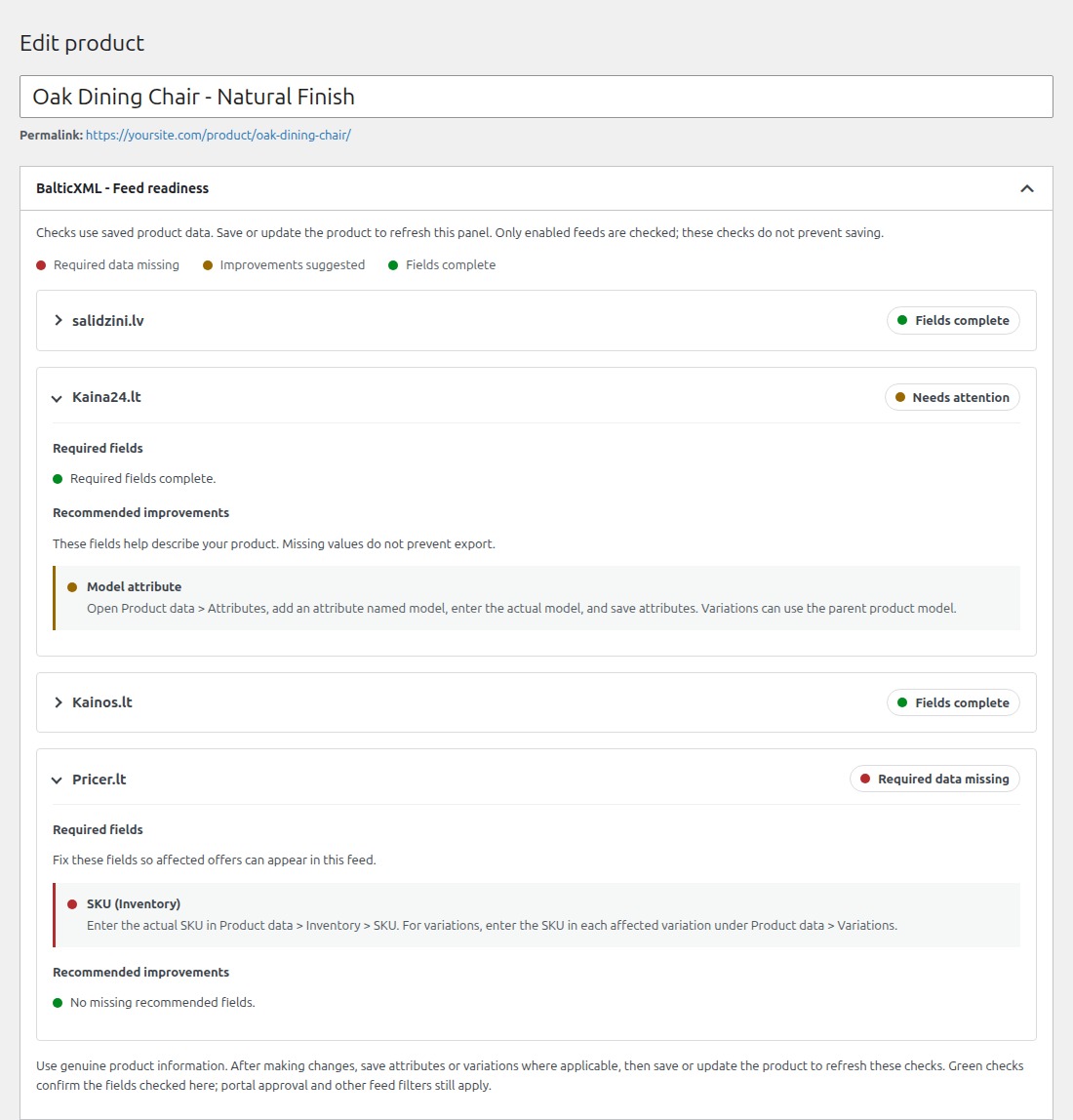
Use the BalticXML – Feed readiness panel when editing products to check whether their information is complete for your enabled feeds.
Screenshots
መጫን
Automatic Installation
- Log in to your WordPress admin panel
- Navigate to Plugins > Add New
- Search for “BalticXML”
- Click “Install Now” and then “Activate”
Manual Installation
- Download the plugin ZIP file
- Go to Plugins > Add New > Upload Plugin
- Upload the ZIP file and click “Install Now”
- Activate the plugin
After Installation
- Make sure WooCommerce is installed and active
- Open BalticXML in the admin menu
- Choose Latvia or Lithuania, enable your feeds, and save settings
- Copy each feed URL and submit it to the corresponding price comparison site
- Set your update schedule and shared options on the General tab
የተለመዱ ጥያቄዎች
-
What URLs do I submit?
-
Copy the URL shown beside each enabled feed in BalticXML settings. Each site has its own URL, for example
https://yoursite.com/salidzini-a7k3p9.xml. You can customize the feed slug in settings. -
How often are the feeds updated?
-
For cached feeds, choose hourly, every six hours, twice daily or daily updates on the General tab. You can also disable scheduled updates and regenerate manually. Scheduled updates use WordPress cron and depend on your site’s cron setup and traffic.
With caching disabled, the plugin generates fresh XML whenever a feed URL is requested.
-
Are out-of-stock products included?
-
They are excluded by default. You can change this on the General tab.
-
Are product variations included?
-
Yes. Each variation can be exported as a separate offer. You can change this on the General tab.
-
How do I add a brand or manufacturer?
-
Assign the product’s brand in Brands, if available. You can also add an attribute named
brandormanufacturerunder Product data > Attributes. Supported brand plugins and parent product brands are also detected.BalticXML checks the
product_brand,pwb-brand,pa_brandandpa_zimolstaxonomies by default. A variation’s own brand takes priority over its parent’s brand. -
Can I use a custom brand taxonomy?
-
Yes. Add its exact taxonomy key through the
balticxml_brand_taxonomiesfilter in a small custom plugin or your child theme’sfunctions.php. For example, to supportpa_custom_brandwithout duplicating product data:`phpadd_filter(‘balticxml_brand_taxonomies’, function ($taxonomies) {
$taxonomies[] = ‘pa_custom_brand’;return $taxonomies;});
`The filter receives the ordered taxonomy list, the product or parent currently being checked, and the feed format key. Appending a key preserves the priority of existing brand taxonomies. The filter applies to feed generation, validation and product readiness checks.
-
Can I supply a manufacturer from a custom field?
-
Yes. The
balticxml_manufacturer_fallbackfilter runs only when neither the product nor its parent has a detected brand. It receives the fallback value (initially empty), the exported product or variation, the parent product if available, and the feed format key.This example checks a custom metadata key on the product and then its parent. Replace
_custom_makerwith your actual key:`phpadd_filter(‘balticxml_manufacturer_fallback’, function ($manufacturer, $product, $parent, $format) {
if (trim($manufacturer) !== ”) {
return $manufacturer;
}foreach ([$product, $parent] as $source) { if (!$source) { continue; } $manufacturer = trim((string) $source->get_meta('_custom_maker', true)); if ($manufacturer !== '') { return $manufacturer; } } return '';}, 10, 4);
`Only return the real manufacturer. An empty result keeps missing-data reporting in place. This filter also applies to validation and product readiness checks. After changing either brand filter, use Regenerate Feed Now when caching is enabled to update existing cached XML.
-
How can I choose a product’s feed category?
-
By default, BalticXML uses the deepest assigned product category. If multiple categories have the same depth, it uses the first one. Use the
balticxml_category_term_idfilter in a small custom plugin or your child theme’sfunctions.phpto select another assigned category:`phpadd_filter(‘balticxml_category_term_id’, function ($term_id, $product_id) {
if ($product_id === 123) {
return 45;
}return $term_id;}, 10, 2);
`Replace
123with the product ID and45with an assignedproduct_catterm ID, not aterm_taxonomy_id. Invalid or unassigned IDs keep the automatic selection. Products without assigned categories stay uncategorized. Variations inherit their parent product’s selection and pass the parent product ID to the filter.The filter applies to all six feeds, validation and product readiness checks. Category names, full hierarchies, IDs and links follow the selected category in each site’s supported format. An optional third argument,
$format, provides the feed key (salidzini,kurpirkt,ceno,kaina24,kainosorpricer) for site-specific selections; use10, 3to receive it. After adding or changing the filter, use Regenerate Feed Now when caching is enabled. -
How do I add a model or barcode?
-
Add an attribute named
modelunder Product data > Attributes for the product model.For barcodes, use the GTIN/EAN field under Product data > Inventory, if available, a supported barcode plugin, or a product attribute named
ean. -
Where can I see missing product fields?
-
Open the product editor and find BalticXML – Feed readiness. Red indicators show missing required data, yellow indicators show recommended improvements, and green indicators show completed checks. Each missing field includes instructions for adding it. You can collapse each feed’s messages.
Save or update the product to refresh the checks. Feed settings also list products excluded because required information is missing or invalid. Missing recommended fields do not prevent export.
-
Does BalticXML submit products to the comparison sites?
-
BalticXML provides the XML feed URLs. Submit each URL to the corresponding site and follow its shop registration process.
-
Does this plugin require WooCommerce?
-
Yes. WooCommerce must be installed and active to export products.
Reviews
There are no reviews for this plugin.
Contributors & Developers
“BalticXML” is open source software. The following people have contributed to this plugin.
Contributors
“BalticXML” has been translated into 1 locale. Thank you to the translators for their contributions.
Translate “BalticXML” into your language.
Interested in development?
Browse the code, check out the SVN repository, or subscribe to the development log by RSS.
Changelog
1.2.2
- Export the full category hierarchy in Kaina24 category names and refresh older cached feeds automatically.
- Add the
balticxml_category_term_idfilter to choose an assigned product category across all six feeds.
1.2.1
- Fix automatic manufacturer detection for the
pa_zimolsglobal product attribute. - Update salidzini.lv and kurpirkt.lv footer banners.
- Add
balticxml_brand_taxonomiesandbalticxml_manufacturer_fallbackfilters for custom brand taxonomies and manufacturer fallbacks.
1.2
- Add Kaina24.lt, Kainos.lt and Pricer.lt exports.
- Split settings in Latvia, Lithuania and General settings tabs.
- Show missing required and recommended feed fields directly in the product editor.
- Add readiness indicators and field-specific instructions for fixing missing product data.
1.1.1
- Fixed: Auto-regenerate cron schedule not updating when changing the interval setting
1.1.0
- Added partner banners in the theme footer for enabled feeds
1.0.0
- Initial release
- salidzini.lv compatible XML feed (
<products>/<product>schema) - kurpirkt.lv compatible XML feed (
<root>/<item>schema) - ceno.lv compatible XML feed (
<root>/<item>schema with extended delivery fields) - Per-format cache files with shared WP-Cron regeneration
- Simple, variable and external product support
- Brand / manufacturer and EAN auto-detection
- Customizable feed slugs per portal
- HPOS compatible
- Translation ready