
ማብራሪያ
PluginCity Ordering Hours for WooCommerce pauses new orders without taking the shop offline. Products stay on the site, customers can keep browsing, and checkout is refused until you are ready to take orders again.
Your shop stays open for browsing. Ordering doesn’t.
Going on holiday? Pause orders until you return. Only fulfil Monday to Friday? Set regular ordering hours. Warehouse overloaded? Pause new orders immediately. Closed for Christmas? Schedule the break and reopen automatically.
The free version is permanent. It does not expire, needs no licence key, and never contacts PluginCity.
What you get
- Pause new orders while the shop stays online
- Pause orders until a date and time, then reopen automatically
- Schedule one temporary closure for a holiday, vacation or fulfilment break
- Weekly ordering hours, one window a day
- A message you write yourself, with the reopening time filled in from your hours
- Choose to keep the cart or hide add to cart
- Notices on the cart and checkout, and in the mini-cart, classic and block
- Place order and Proceed to checkout are switched off while ordering is paused
- Checkout blocked on classic and block flows
- Express payment flows are blocked while ordering is paused
- Block, shortcode and Elementor widget to put the status anywhere
- Opening hours markup for search engines (schema.org), built from your hours and closures
- Settings import and export, so a configuration can be copied to another shop or kept as a backup
- Admin toolbar status showing whether ordering is open or paused
- High-Performance Order Storage compatibility
The free version never phones home. There is no account, no licence key, and no trial clock.
Need multiple closures, date-specific hours, customer-group rules or more advanced scheduling? Ordering Hours Pro adds those features.
Pro is a separate paid version, sold and distributed by PluginCity. It is not included in this plugin and is not downloaded or installed by it, and nothing described above depends on it. Your settings carry over if you buy it.
Configuration
- Leave orders open, or pause them straight away.
- Set weekly ordering hours if you only take orders on certain days.
- Add one temporary closure for a holiday, vacation or fulfilment break, if you have one coming.
- Write the message a customer sees while orders are paused.
- Choose whether to keep the cart or hide add to cart.
Screenshots


![The [plugincity_store_status] shortcode prints the status on any page.](https://ps.w.org/plugincity-ordering-hours/assets/screenshot-8.png?rev=3739744)
Blocks
This plugin provides 1 block.
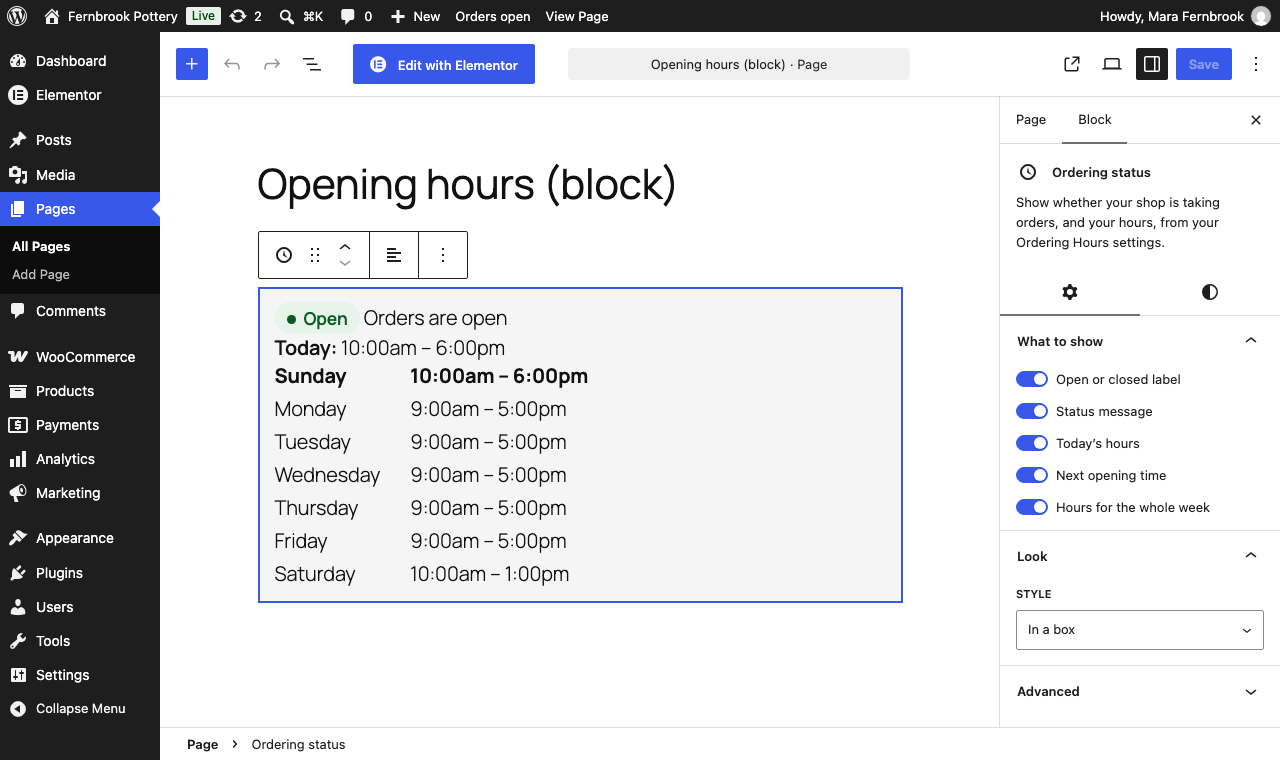
- Ordering status Show whether your shop is taking orders, and your hours, from your Ordering Hours settings.
መጫን
WooCommerce must be installed and active first.
- In WordPress, go to Plugins Add New.
- Search for Ordering Hours for WooCommerce.
- Click Install Now, then Activate.
- Go to WooCommerce Ordering Hours, or click Settings on the Plugins screen.
Installing from a downloaded ZIP instead: go to Plugins Add New Upload Plugin, choose the ZIP file, and click Install Now. Leave the ZIP as it is; there is no need to unzip it.
የተለመዱ ጥያቄዎች
-
Does the shop go offline?
-
No. Products, categories and search stay visible. Only new customer orders are refused.
-
Does it work with the block cart and checkout?
-
Yes. While orders are paused the refusal is reported through WooCommerce’s Store API, so the block cart and checkout refuse to proceed and show the same message.
-
What happens to carts already built?
-
They stay. The customer can come back when you reopen and finish the order.
-
What happens to orders already placed?
-
Nothing. Closing the shop does not cancel them, change their status, or stop you fulfilling or refunding them.
-
Can I use it as vacation mode or holiday mode?
-
Yes. Pause orders until the day you are back, or set one temporary closure with its own message. The shop reopens automatically at the time you give, and products stay visible the whole time.
-
Can I change the wording?
-
Yes. Write a headline and a message for the cart and checkout, and another pair for the mini-cart. Type {reopen_time} where the day and time orders reopen should go, and it is filled in from your hours in your store’s timezone and time format; {reopen_day}, {reopen_date} and {reopen_clock} give the parts. Where no reopening time is known, that sentence is replaced. Bold, italics and links are allowed; anything else is stripped before it reaches the storefront.
-
Can I show the status somewhere else on my site?
-
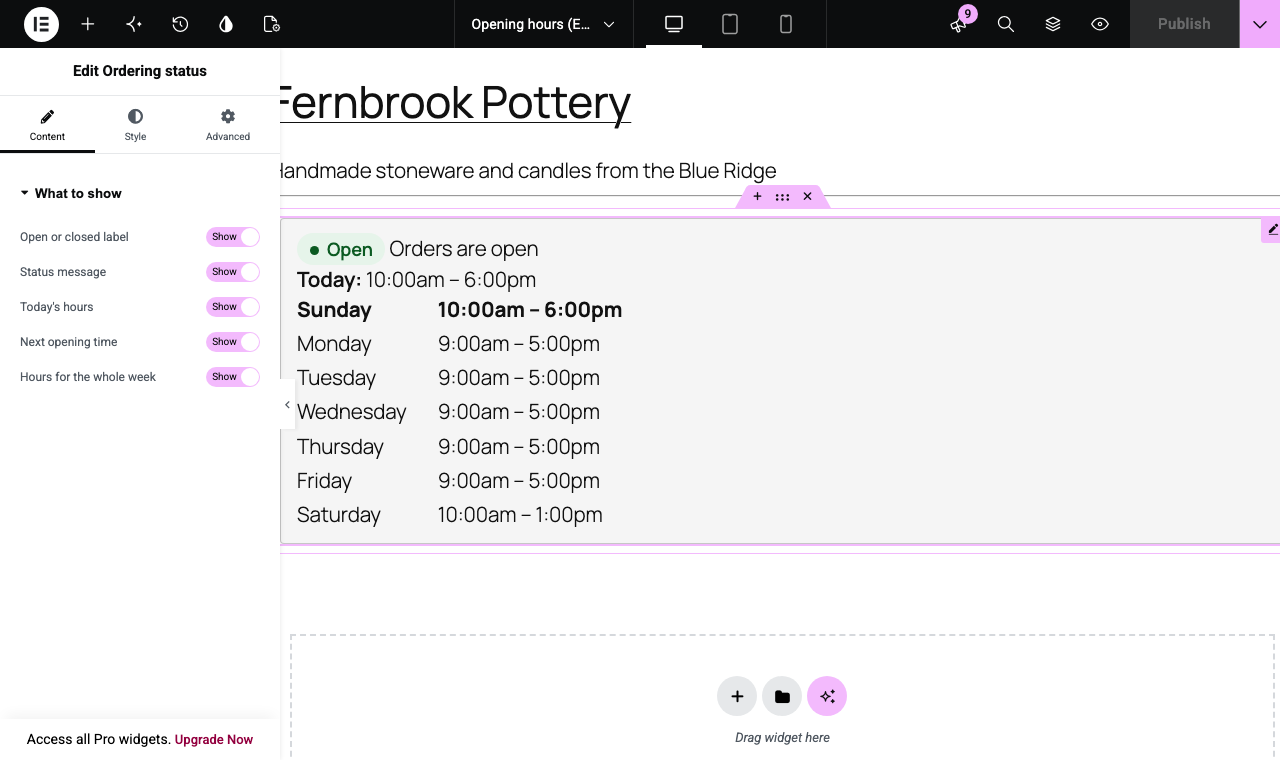
Yes. Add the Ordering status block in the block editor or the site editor, drop in the Ordering status widget in Elementor, or use the shortcode
[plugincity_store_status]. All three show the same thing: whether orders are open, today’s hours, the next opening time or the whole week, using your timezone, hours and closures. -
Does it add opening hours markup for search engines?
-
Optionally. Under WooCommerce Ordering Hours Search engines the plugin can print schema.org opening hours (JSON-LD) built from your weekly hours and upcoming closures, in your store’s timezone. By default it appears only on pages that show today’s or the weekly hours, once per page; you can print it on every page or switch it off. It needs Use weekly hours to be on, uses your site title, and adds no address, phone number or business type. If Yoast Local SEO or Rank Math’s Local SEO module is active, it steps aside. It describes when you take orders, so switch it off if your public opening hours differ.
-
Do I need Elementor?
-
No. The widget only appears if Elementor is already installed, and nothing changes if it is not. The block needs nothing but WordPress.
-
No. While orders are paused, Proceed to checkout and Place order stay on the page but are switched off, so the customer can read why, and the one-tap payment buttons are taken off the cart pages. Whatever route an order takes, it is refused while orders are paused. Express payment flows that pass through WooCommerce checkout are blocked too.
-
Does it work with High-Performance Order Storage?
-
Yes. Nothing is written to orders, so HPOS shops are fully supported.
-
Can my hours run past midnight?
-
Not in a single window. A day’s hours have to close after they open, and the screen tells you when they do not. To take orders until the end of the day, finish at 00:00.
-
What happens if I deactivate WooCommerce?
-
The plugin steps aside and shows a notice. It does not fatally error, and your settings are waiting when WooCommerce comes back.
-
Do I need an account or a licence?
-
No. It is free to use for as long as you like, needs no key, and never contacts PluginCity.
Reviews
There are no reviews for this plugin.
Contributors & Developers
“PluginCity Ordering Hours for WooCommerce” is open source software. The following people have contributed to this plugin.
Contributors
Translate “PluginCity Ordering Hours for WooCommerce” into your language.
Interested in development?
Browse the code, check out the SVN repository, or subscribe to the development log by RSS.
Changelog
1.1.0
- New: the Ordering status block, for the block editor and the site editor.
- New: the Ordering status widget for Elementor, shown only when Elementor is active.
- New: the shortcode can show today’s hours, the next opening time or the whole week, in a choice of looks.
- New: optional schema.org opening hours markup, printed once per page, which steps aside for Yoast Local SEO and Rank Math Local SEO.
1.0.1
- New: the headline and message for the cart, checkout and mini-cart can be edited, with the reopening time filled in from your hours ({reopen_time}, {reopen_day}, {reopen_date}, {reopen_clock}).
- New: the message now appears in the Mini-Cart block and its drawer as well as the classic mini-cart.
- Changed: Place order and Proceed to checkout are switched off while orders are paused, in the classic and block flows, and the mini-cart Checkout button with them.
- Changed: the shipped message now reads “Your basket is ready, but ordering is currently closed.” with “We reopen Monday at 8:00am.”
- Changed: reopening times follow the time format set under Settings General.
1.0.0
- First public release.